Provisioned means ready: Inside Nerdio Manager's session host lifecycle
Image, provisioning, and lifecycle management for Azure Virtual Desktop (AVD), Windows 365, Azure Local, and AVD Hybrid.
|
The short version |
|
|
|
|
Where the real time goes
Patch Tuesday lands. Someone RDPs into the image VM, runs updates, installs the new browser build, reboots twice, remembers to clear the local profiles, runs Sysprep, watches it fail because of a half-installed Microsoft Store app, fixes that, runs it again, waits for the image to seal, replicates it to three regions, and then re-images the host pools during a maintenance window that has already started.
Multiply that by a monthly cadence and a handful of images: a standard desktop, a finance desktop with the ERP client, and a GPU image for the design team. Image management quietly becomes one of the largest recurring blocks of time on an EUC team's calendar. It is also a high-impact workflow because a change to an image can affect every session host that consumes it.
Many IT teams have a person who effectively owns the golden image, and everyone learns not to book too much of their time around Patch Tuesday. Nobody puts "maintains the golden image" on a LinkedIn profile. Everyone puts it on a calendar, monthly, forever.
Nerdio Manager for Enterprise (Nerdio Manager) treats that workflow as the product. It makes a specific, deliberate choice inside it: a session host accepts users once it is provisioned and validated. Provisioned means ready. That work takes a few minutes per session host, almost all of it completed before anyone needs the capacity. This article explains what happens during that time and why it matters.
Image management without another image platform
Nerdio Manager does not introduce a proprietary image format or separate image-management appliance. It orchestrates native Azure capabilities, including managed images, Azure Compute Gallery versions, and Sysprep-generalized disks, and automates the workflow around them.
|
Stage |
What Nerdio Manager handles |
|
Build and customize |
Create from the Azure library, your own managed image, or an existing VM. Run scripted actions and install or remove applications before sealing, along with many other options. |
|
Seal |
Run Sysprep and image preparation as a managed job, including options such as local profile cleanup, security type, hibernation support, App-V enablement, and App Attach certificates. |
|
Version and distribute |
Publish to Azure Compute Gallery with your chosen versioning and replicate to selected Azure regions. For AVD Hybrid and Azure Local, desktop images synchronize to your on-premises hardware. |
|
Stage and roll back |
Validate an inactive image version before activation and retain or remove the outgoing version per your backup policy. |
|
Automate rollout |
Schedule desktop image updates and Set as image jobs, then re-image session hosts on a schedule or after the last user logs off. |
Real results
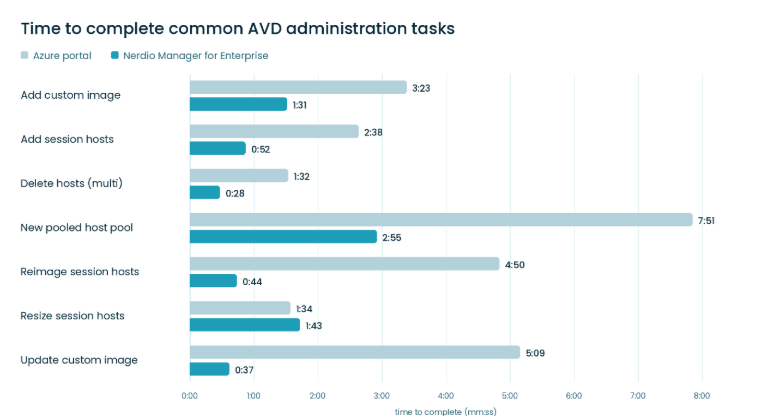
Figure 1 (above): Dr. Benny Tritsch AVD administration benchmark
In Dr. Benny Tritsch's AVD administration benchmark (Figure 1), updating a custom image dropped from ~5 minutes and 146 clicks in native Microsoft Azure administration to under 40 seconds and 13 clicks in Nerdio Manager; re-imaging session hosts dropped from ~5 minutes and 90 clicks to under 45 seconds and 10 clicks. Task times are effectively equal for one operation, resizing session hosts. That operation is designed for bulk session host resizing and can change the desktop image and OS disk size in a single task, rather than as separate steps.
A host pool is a configuration object
The image is only part of the final desktop. Nerdio Manager treats the host pool itself as the object that defines how session hosts should be deployed and operated. Its settings bring together configurations that would otherwise be spread across the Azure portal, policy tools, and separate runbooks.
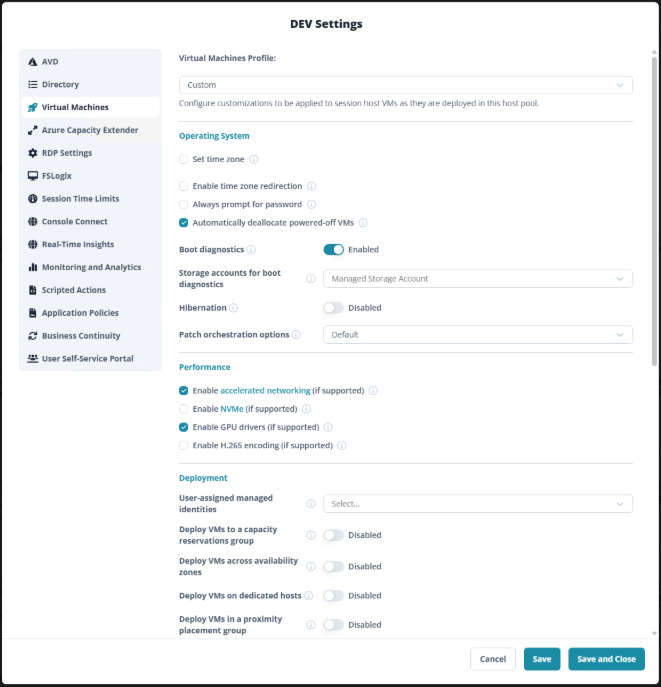
Figure 2 (above): Host pool settings in Nerdio Manager: Virtual Machines profile. 14+ tabs, one host pool. Scalable.
Most of these (Figure 2) settings can be defined as reusable host pool profiles rather than re-entered per host pool. Examples include Directory, Virtual Machines, RDP Settings, FSLogix, Session Time Limits, Scripted Actions, and Azure Capacity Extender. Host pool profiles extend the same idea to the whole object: a known-good configuration becomes the starting point for the next deployment.
The operational benefit is consistency. When multiple host pools reference the same host pool profile, a single change updates all of them, avoiding the need for a series of manual edits that can drift over time. Some host pool profiles also have override settings, so you can use the shared profile while overriding specific settings that apply only to that one host pool.
What Nerdio Manager applies and checks during the provisioning process
Inside the provisioning window
Provisioning a representative new AVD session host in Microsoft Azure completes in about ten minutes, and Nerdio Manager reports the timing of each step, making the entire process transparent.
|
Provisioning step (Microsoft Azure) |
Approx. duration |
|
Network interface provisioning |
1s |
|
Virtual machine deployment |
2m 30s |
|
Virtual machine state validation |
1m |
|
Active Directory domain join |
30s |
|
VM configuration extension * |
2m |
|
Virtual machine restart |
1m 45s |
|
Azure Virtual Desktop service registration |
2m |
|
Session host registration confirmation |
1s |
|
Total |
9m 47s |
About these timings: They reflect a session host deployed in Microsoft Azure. The exact time varies by region, VM size, network, host pool configuration, applications, scripts, and compliance requirements.
* The VM configuration extension step is where the host pool's settings, scripts, applications, and compliance checks are applied, so its duration varies more than any step in the run.
|
Clone-first approach |
Nerdio Manager’s approach |
|
A VM copy appears quickly, with configuration work still ahead of it. |
A session host becomes available once the required readiness work is complete. |
|
More state must be baked into the image or applied afterward. |
Host pool configuration is applied during provisioning. |
|
Application or policy issues may surface after registration. |
Provisioning checks verify that the required readiness steps have been completed. |
|
Optimizes for how fast a VM is created. |
Optimizes for customization and verified readiness. |
Users never wait for provisioning
The operating model is to schedule capacity rather than remove readiness steps. Auto-scale can pre-stage hosts ahead of the logon peak while replacing session host capacity in the background. Azure Capacity Extender can define fallback VM sizes when the preferred SKU is unavailable in a region. In that model, the provisioning window closes before users need the session host.
Why apply configurations and customizations during provisioning?
Many EUC teams have historically applied settings such as FSLogix behavior, session limits, time zone, password prompting, and watermarking through Group Policy. For settings that determine whether a session host is ready to serve users, Nerdio Manager can apply or validate that machine state during provisioning rather than relying solely on a later policy refresh. This does not replace Group Policy or Intune for user-scoped settings and policies that also apply to physical endpoints.
One image workflow across Windows cloud deployments
The same desktop image management model extends across the different deployment types:
That matters particularly for AVD Hybrid. Microsoft's AVD Hybrid model keeps the Azure Virtual Desktop control plane in Azure while session hosts run on customer infrastructure connected through Azure Arc. Microsoft does not include provisioning or power management for AVD Hybrid session hosts; Nerdio Manager provides that layer and extends the same image, provisioning, staging, versioning, and host pool configuration model to those environments rather than introducing a separate workflow.
Why Nerdio Manager builds it this way
The short answer: Nerdio Manager puts provisioning time to work. After Azure creates the virtual machine, Nerdio Manager joins it to your directory, applies the host pool's profiles and settings, installs applications in the order you defined, runs your scripted actions, and validates the security and compliance state. A session host either completes that work and becomes available, or it stays out of service until the problem is resolved. Users never land on a partially configured desktop, and nobody spends Monday morning working out which session host is broken.
Zoom out, and this matters more over time. In the TechnologyAdvice industry trend report From Legacy VDI to Cloud-First Operations, Nerdio Chief Product and Technology Officer Scott Manchester describes the current shift as a once-in-an-era EUC migration, and the report finds that most organizations do not move in a single step, instead running mixed environments for years. That is exactly the situation this workflow is built for. The desktop image you create and seal is the same object whether it lands on Azure Virtual Desktop in Azure, Azure Local, AVD Hybrid on your own hardware, or a Windows 365 Cloud PC. The host pool provisioning model, its profiles, and its readiness checks work the same way across those deployment types. So, a team midway through a migration operates one workflow rather than one per destination, and the mixed environment becomes a plan rather than a tax.
Users never wait for any of it. Auto-scale stages capacity ahead of the logon peak, and Azure Capacity Extender keeps provisioning from stalling when a preferred VM SKU is exhausted in a region. Application and compliance gating is a dial you set per host pool, tuned to each workload's requirements. The provisioning window closes before anyone needs the session host.
The choice is between optimizing for how quickly a VM is provisioned and optimizing for whether the desktop is ready when the first user connects. Nerdio Manager optimizes for ready.
Frequently asked questions
Because it applies and validates the final machine state before the session host accepts users: identity, configuration, applications, security settings, optional compliance, and AVD session readiness checks.
2. Can I adjust which readiness checks run during provisioning?
Yes. Applications and scripted actions before drain mode release, as well as Intune and security compliance enforcement, are configurable per host pool, allowing you to align each host pool with your organizational requirements.
3. Do I still use Group Policy or Intune?
Yes. They remain appropriate for user-scoped settings and policies that also apply to physical endpoints. Nerdio Manager focuses on provisioning-time configuration and controls so that the session host is ready for your AVD users.
4. Do I have to configure every host pool from scratch?
No. Reusable host pool profiles, including Directory, Virtual Machines, RDP Settings, FSLogix, Session Time Limits, Scripted Actions, and Azure Capacity Extender, enable multiple host pools to reference known-good configurations.
5. Can the same desktop image and management model support AVD on Azure, Azure Local, AVD Hybrid, and Windows 365?
Yes. Nerdio Manager extends the same desktop image management approach across AVD on Azure, Windows 365, Azure Local, and supported AVD Hybrid environments.
6. Can the same host pool provisioning and management model support AVD on Azure, Azure Local, and AVD Hybrid deployments?
Yes. Nerdio Manager uses the same host pool orchestration and provisioning model across supported AVD deployment types, providing a consistent management experience across Azure, Azure Local, and AVD Hybrid.
7. How can I prevent session host provisioning from failing when an Azure region lacks capacity for a specific VM SKU?
Nerdio Manager has a feature called Azure Capacity Extender that can mitigate Azure region SKU exhaustion by allowing you to define fallback VM SKUs to use if session host provisioning fails.
Want to see this in your own tenant? Get a demo or try Nerdio Manager free.
References and additional information